 Blurize
How to hide other children’s faces before you share
Your child is on stage, at a birthday party or on a school trip — and so are a dozen other children whose parents never agreed to have them online. Here is how to share the moment and keep the other kids private.
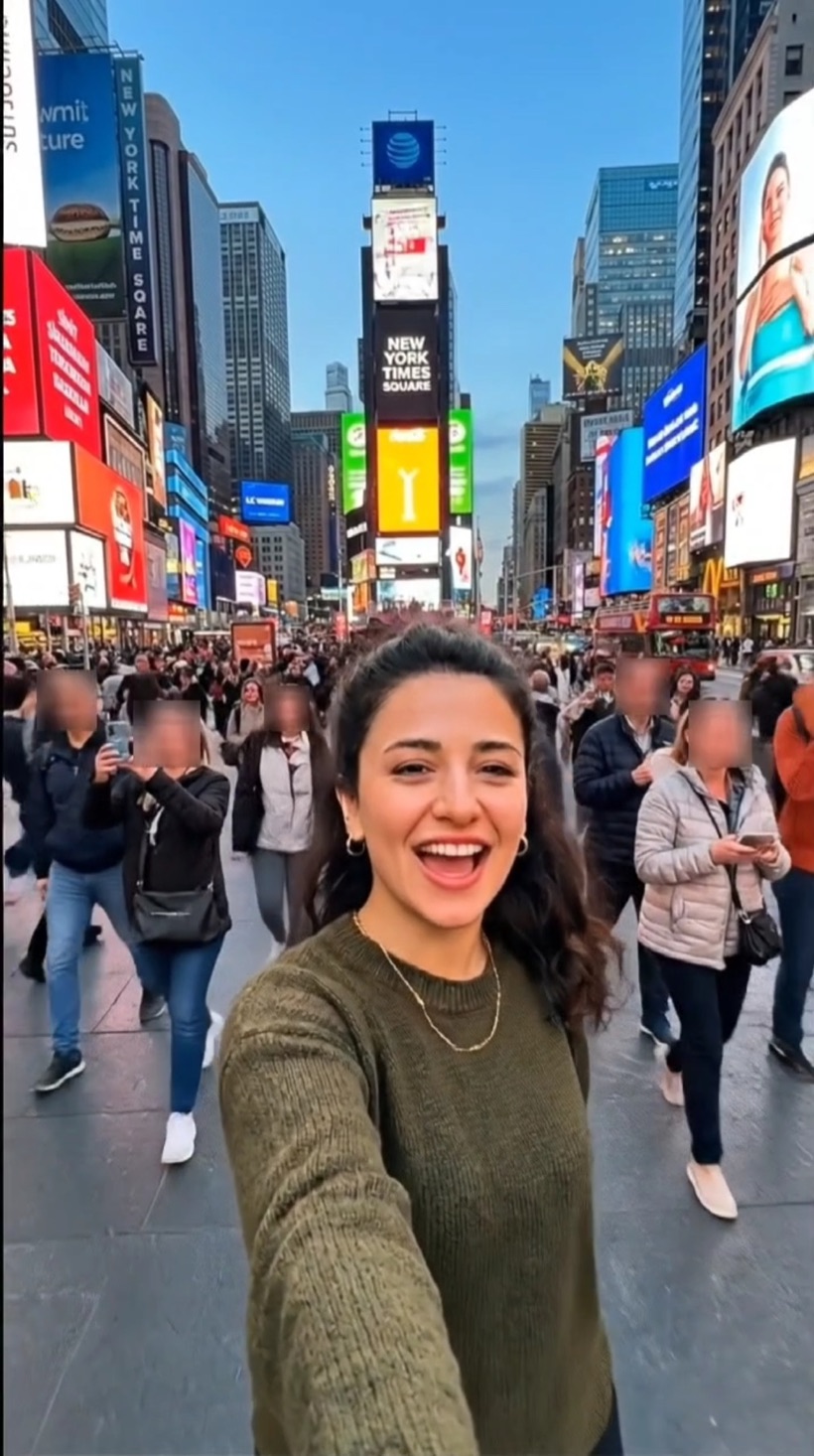
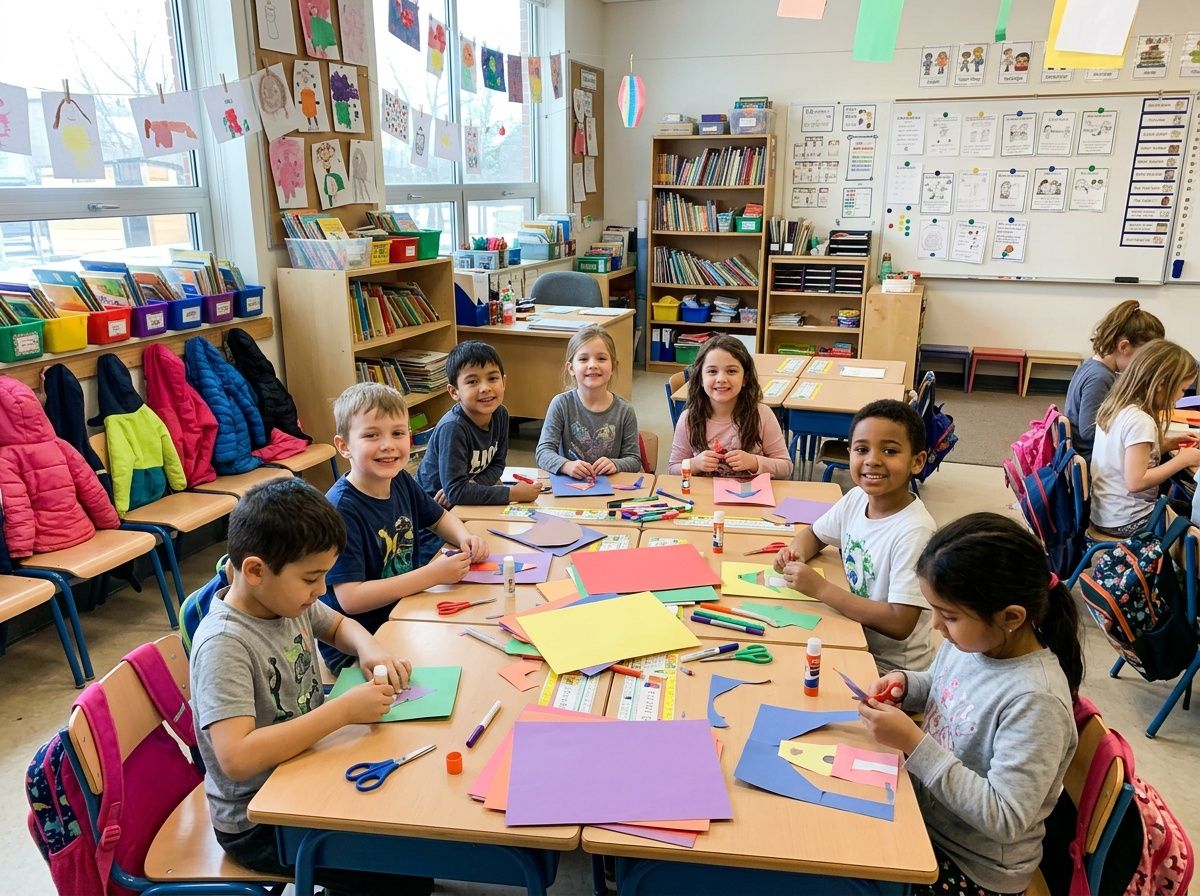 Before
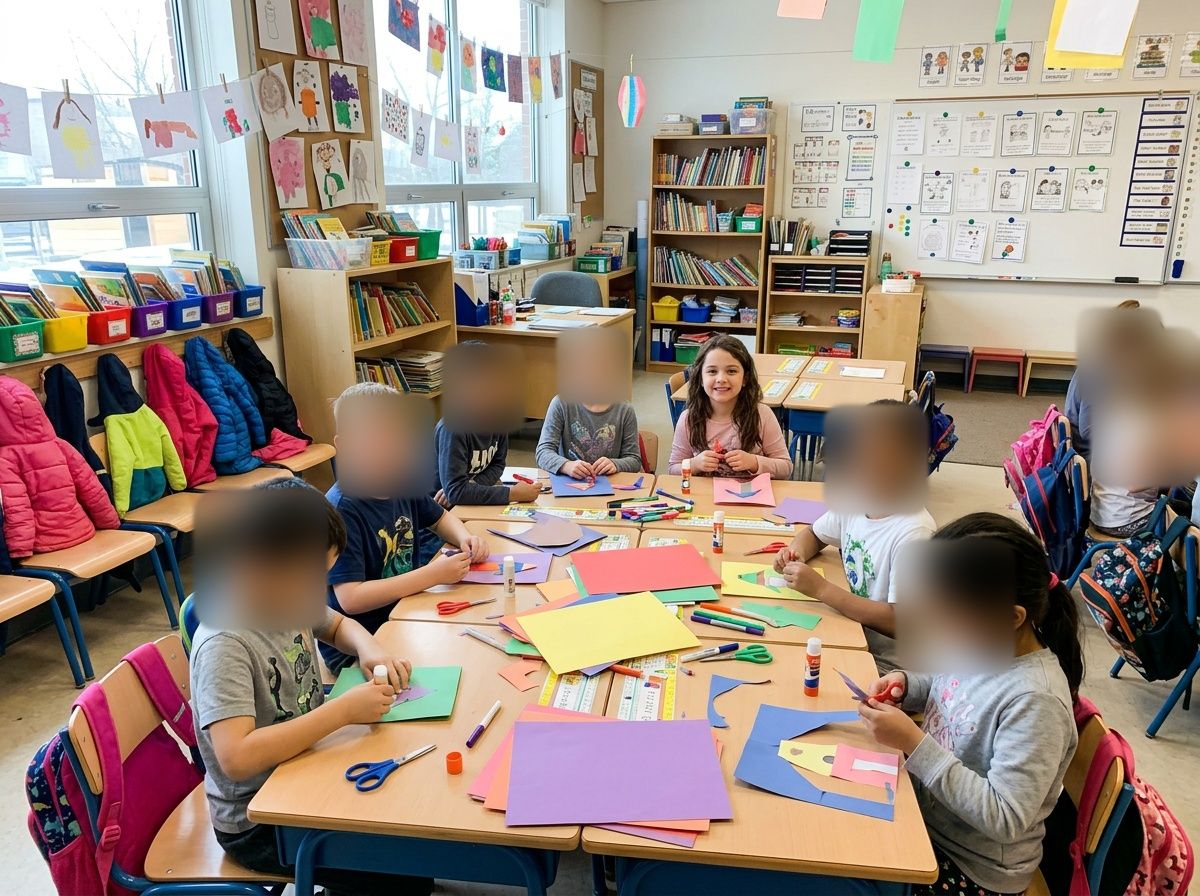 After
Why it matters
Children can’t decide for themselves what ends up online, and many parents would rather their child’s face didn’t appear on a stranger’s feed. Many schools also have their own rules about photos of pupils.
Blurring the other children is a simple courtesy: you keep your own child clear and give everyone else the privacy their parents may expect. If your school has a photo policy, follow it — blurring doesn’t replace it.
How to do it in Blurize
-
Pick the photos or video
Open Blurize and choose a video or several photos from the event.

-
Find the faces
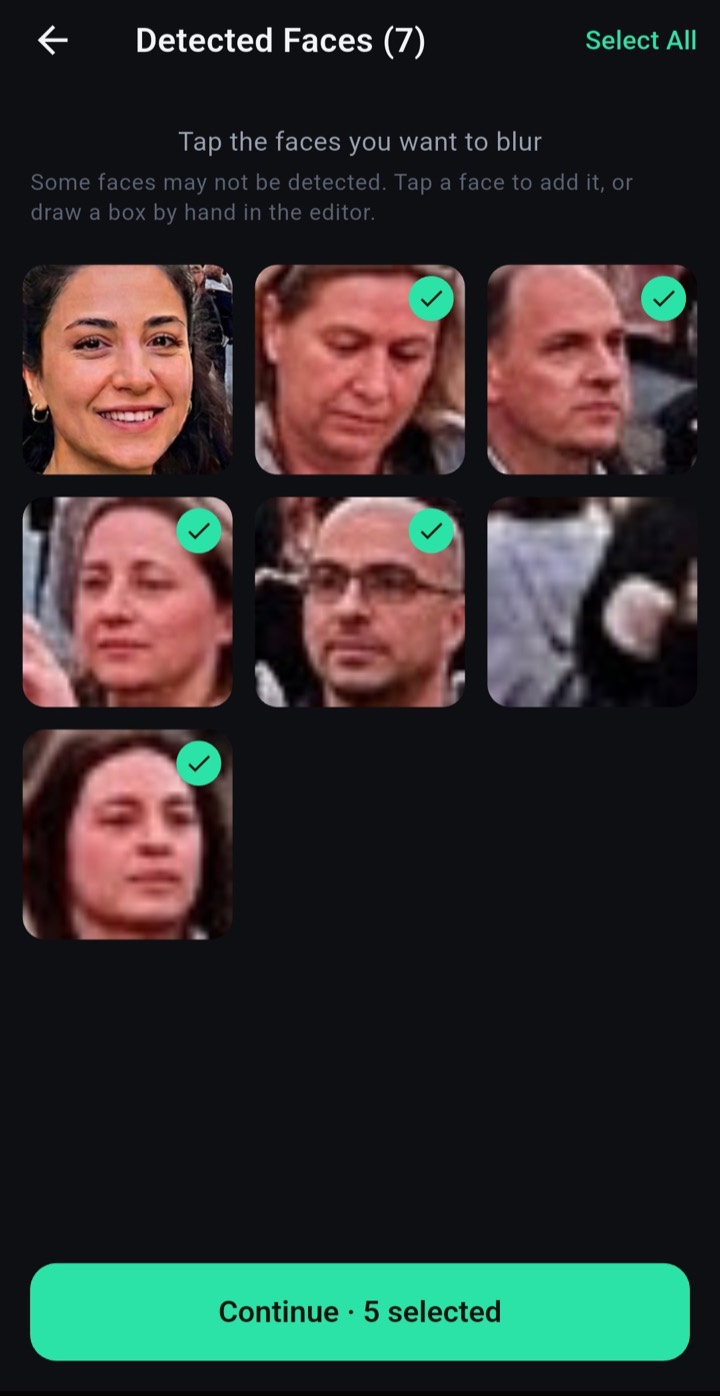
Tap Detect Faces. Every child appears as a separate thumbnail.
-
Keep only your child sharp
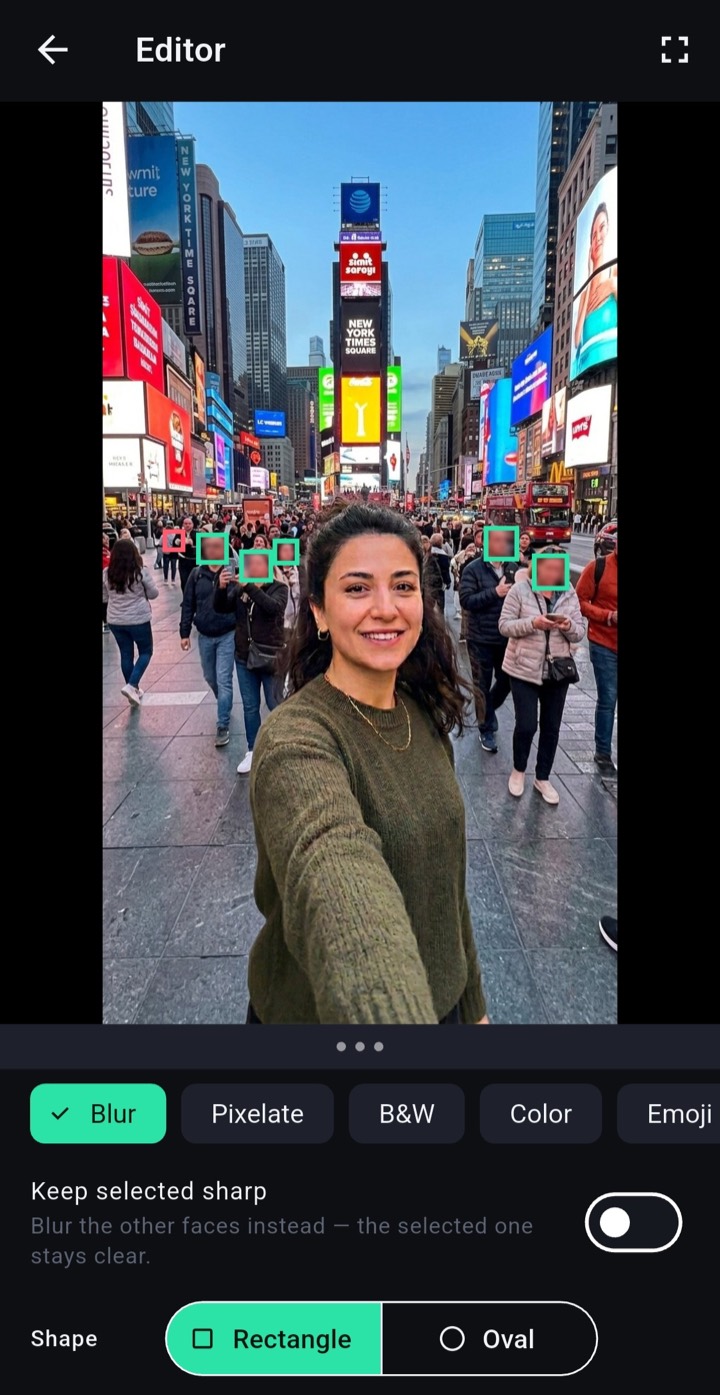
Select your child and turn on Keep selected sharp. Everyone else is hidden — no need to tap each child.
-
Save and share
Choose a style — an emoji works well for kids — and export. The originals stay in your gallery unchanged.
Questions
Are the photos uploaded?
No. Blurize processes everything on your phone. Photos of children never leave your device.
Does Blurize recognise who someone is?
No. It finds where faces are so you can hide them; it doesn’t identify people or store faces.
Can I do a whole album at once?
Yes. Pick several photos together and hide faces in all of them in one go.