 Blurize
How to blur faces in a video on your phone
You filmed something worth sharing, but there are people in it who never agreed to be online. Here is how to hide their faces in a few minutes, on iPhone or Android, without uploading the video anywhere.
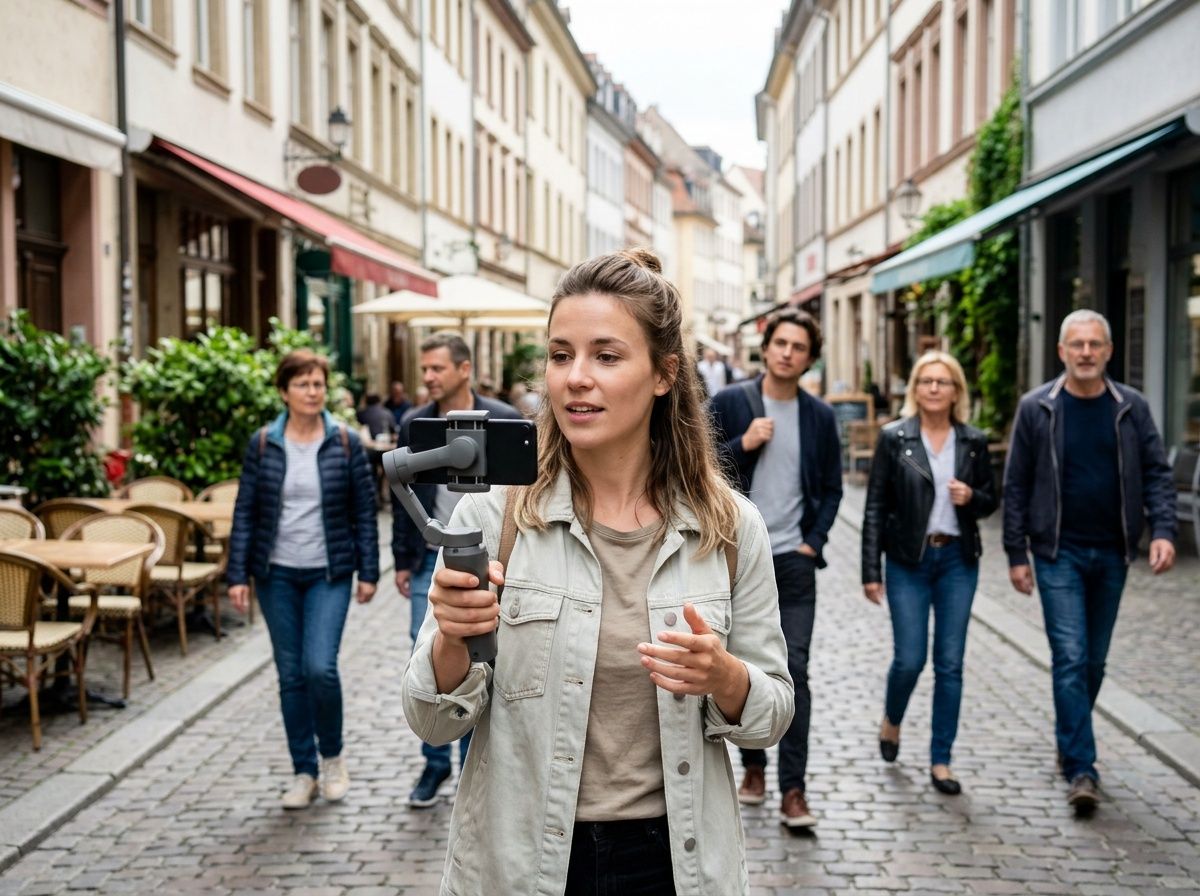 Before
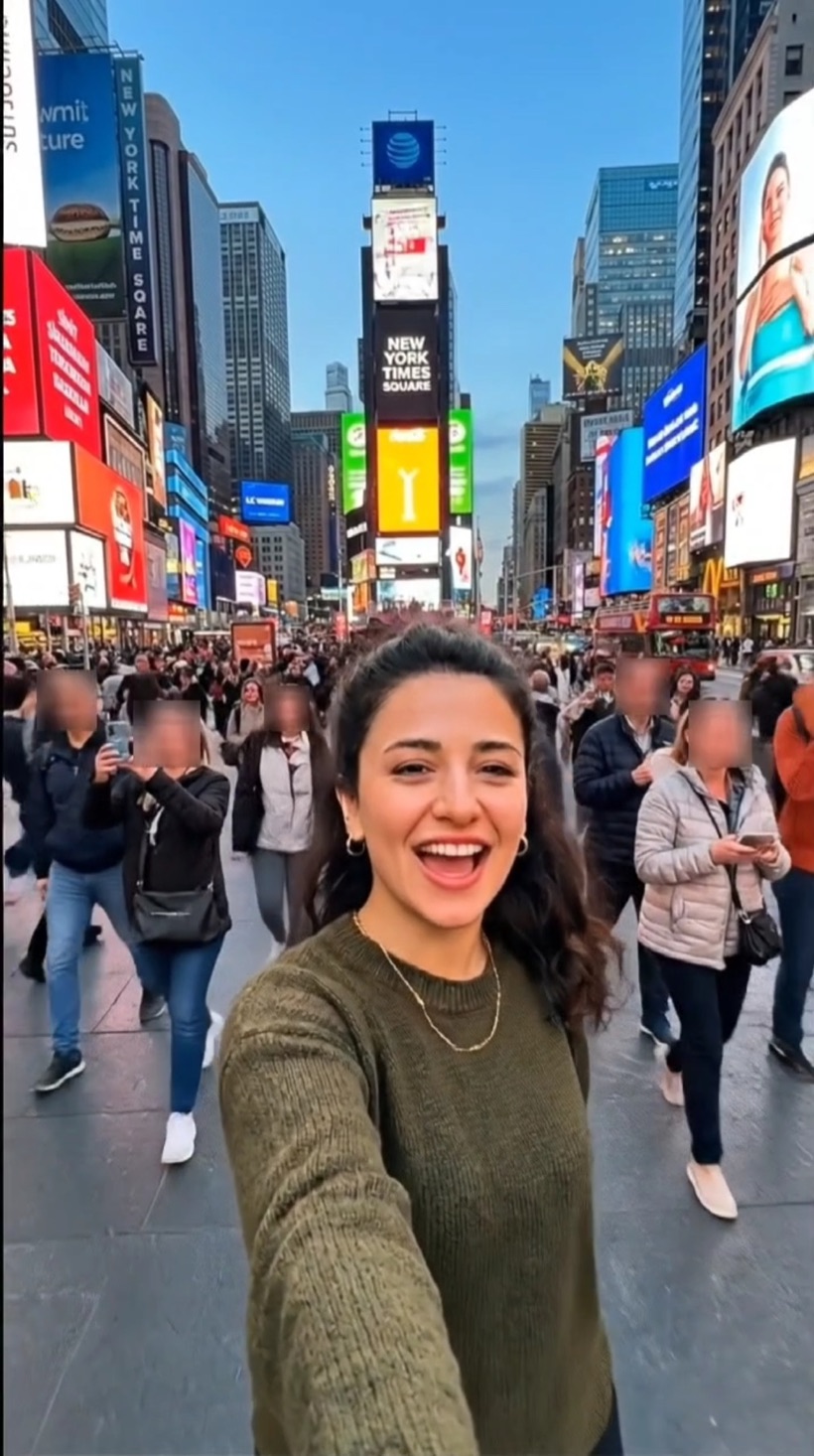
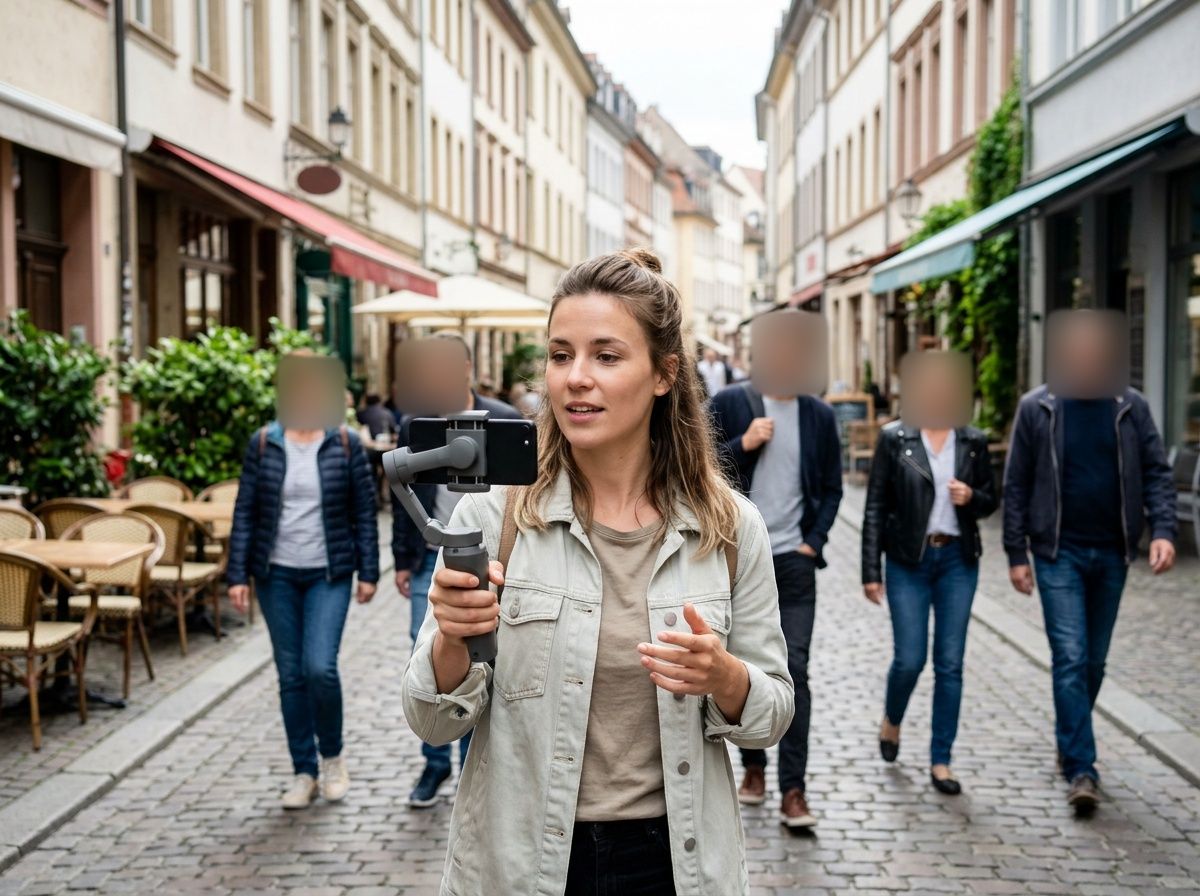 After
Why blur faces before you post
A face is the fastest way to identify someone. Strangers in the background of a street video, other children at a birthday party, a colleague who didn’t want to be filmed: once the clip is public, you can’t take it back.
Most video editors make you track each face by hand, frame by frame. Online “face blur” sites are faster, but they ask you to upload the video first — which is exactly the kind of exposure you were trying to avoid.
How to do it in Blurize
-
Pick your video
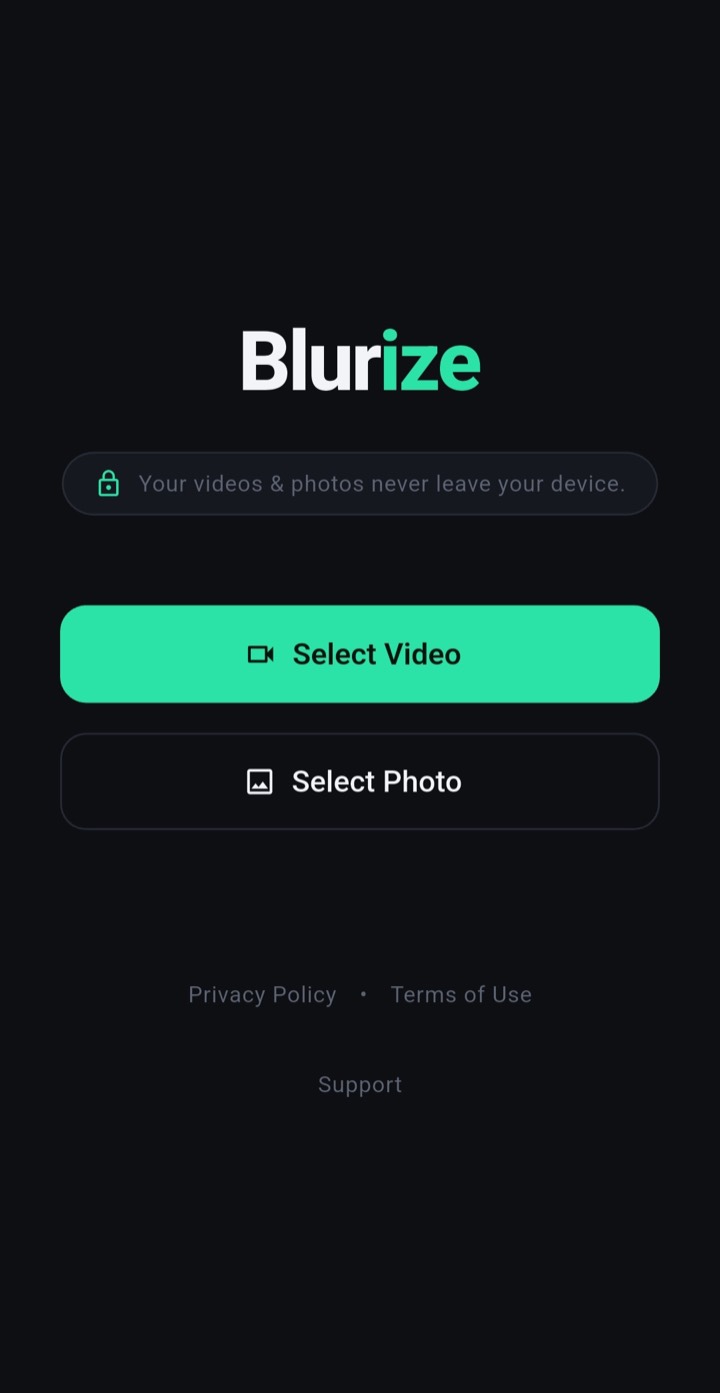
Open Blurize and tap Select Video. Choose the clip from your gallery. Blurize never changes the original file.
-
Let it find the faces
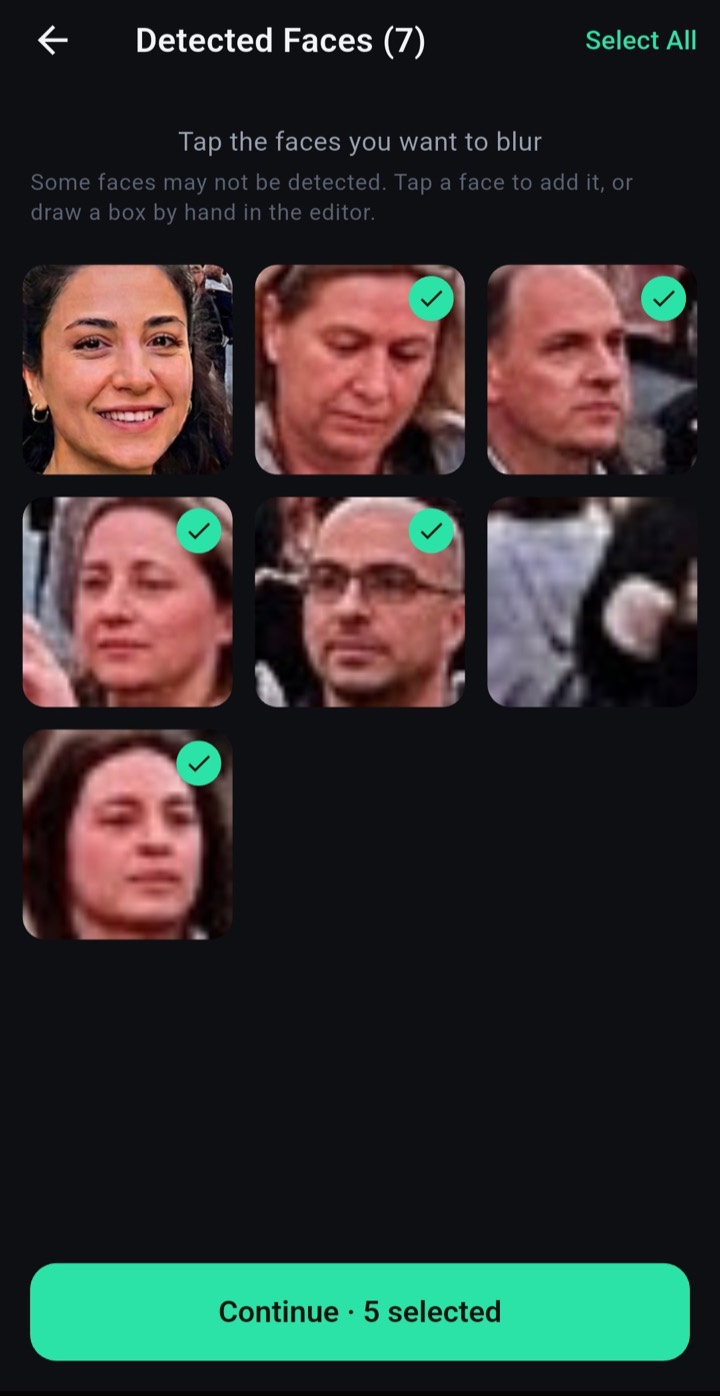
Tap Detect Faces. Blurize goes through the video and shows each person it found as a separate thumbnail, so you choose people, not frames.
-
Choose who to hide
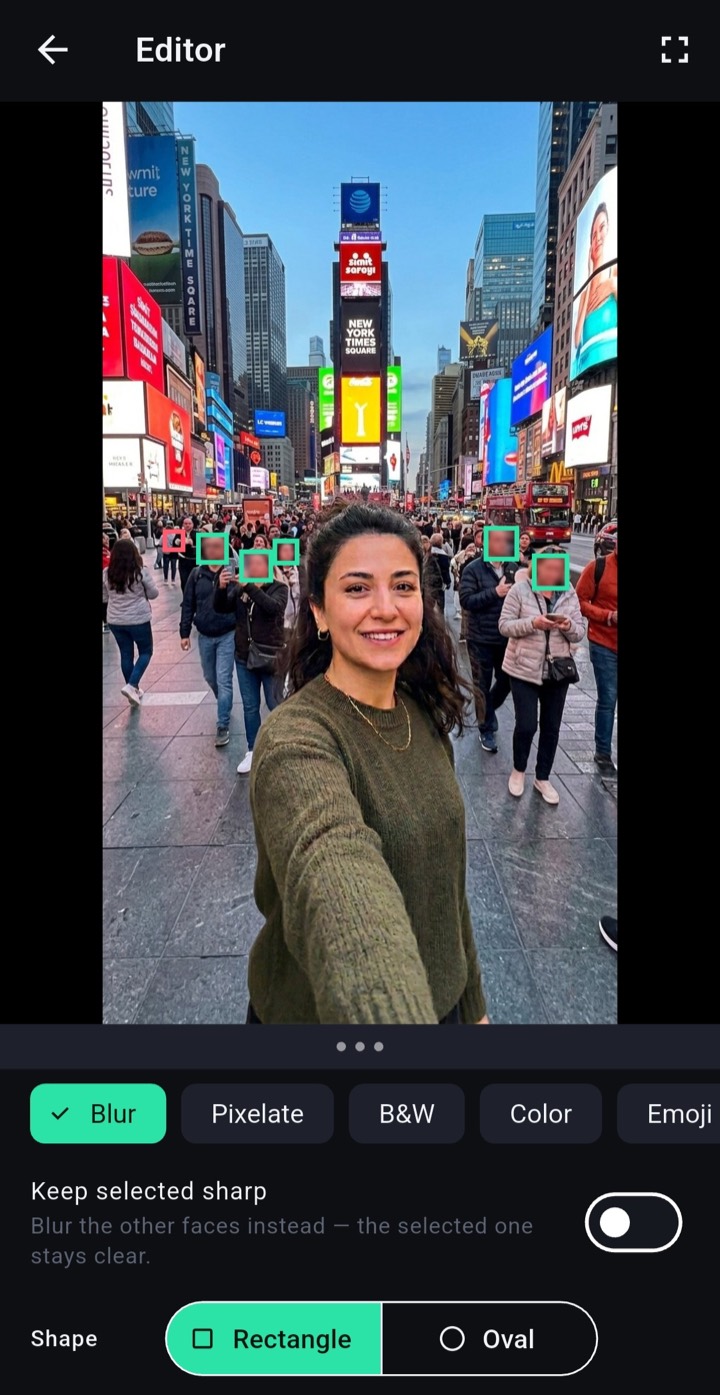
Tap the faces you want hidden. If it’s easier, select only yourself and turn on Keep selected sharp to hide everyone else.
-
Pick a style and save
Choose Blur, Pixelate, B&W, a solid color or an emoji, check the preview, then export. The new video is saved to your gallery with the sound intact.
Tips for a clean result
- People who turn away and back are usually recognised as the same person, but check the preview once before you share.
- Automatic detection can miss a face at an odd angle or partly hidden. If it does, add it by hand in the editor.
- For crowded scenes, Keep selected sharp is much faster than tapping every stranger.
- Want to hide a voice too? Blurize can change voices in the same video.
Questions
Is my video uploaded anywhere?
No. Detection, blurring and export all happen on your phone. Blurize has no server that receives your photos or videos.
Does it work offline?
Yes. You can blur and export a video in airplane mode.
Is it free?
Yes, with a small Blurize watermark on the result. You can remove it for one export by watching a short ad, or for good with Premium, which also allows longer videos and 1080p export.