 Blurize
How to blur a license plate in a photo or video
Selling a car, posting a road-trip video or sharing a parking-lot mishap? Your plate is easy to read and easy to look up. Here is how to hide it before the photo goes online.
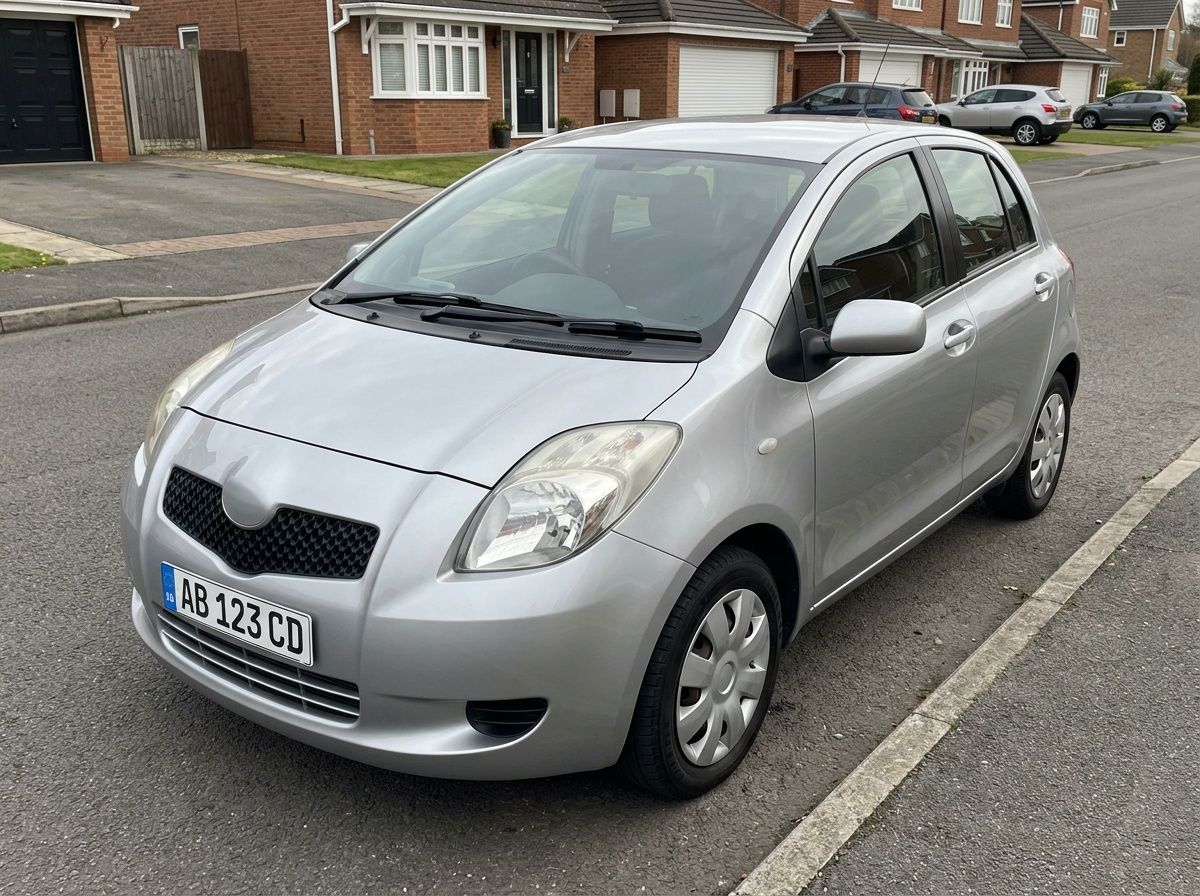 Before
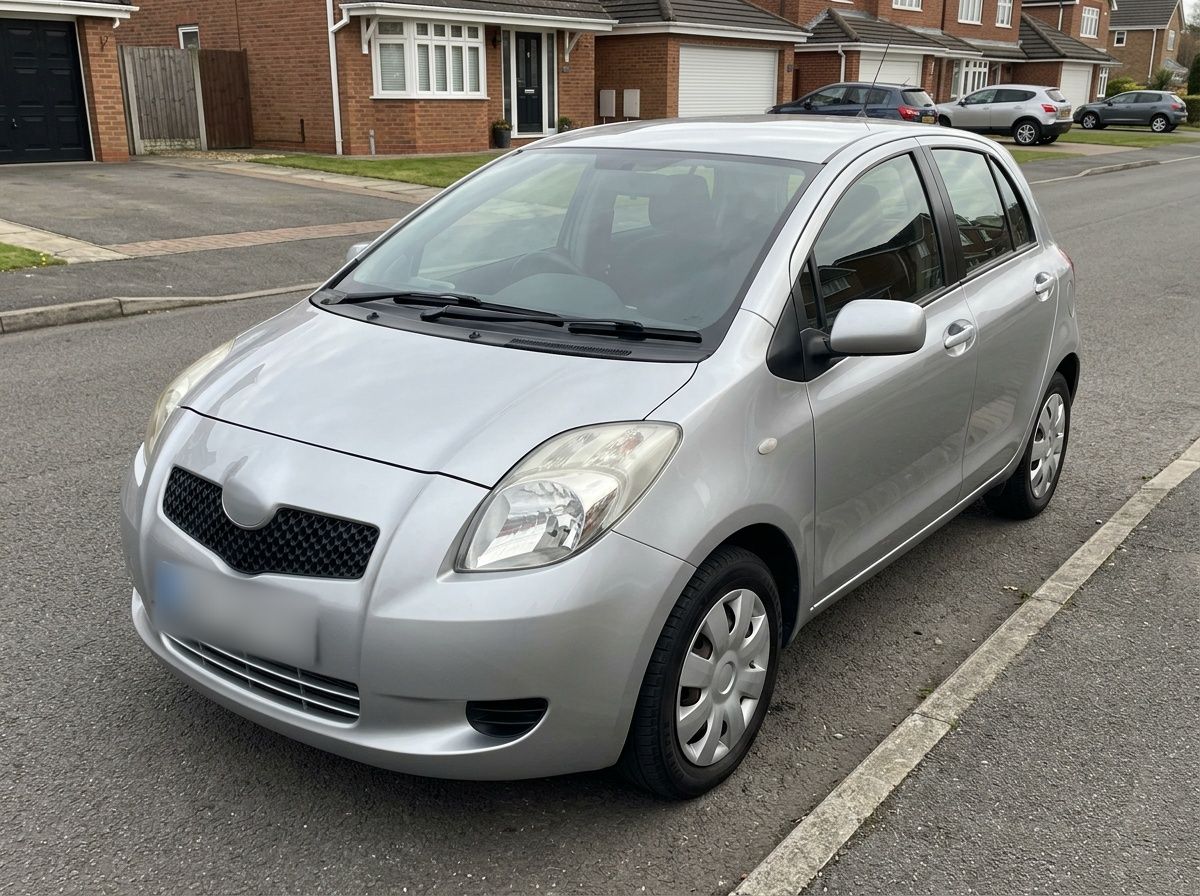 After
Why hide your plate
A visible plate links a photo to a specific car — and often to where it is parked every night. Many sellers hide it in listing photos for that reason, and some marketplaces recommend it.
The same goes for other people’s cars in your videos: a dash-cam clip or a street vlog can show dozens of readable plates.
How to do it in Blurize
-
Pick the photos or video
Open Blurize and choose a video, or several photos at once — handy for a whole listing.

-
Turn on plate detection
Before scanning, switch on Detect license plates. It is off by default, because most people only need faces.
-
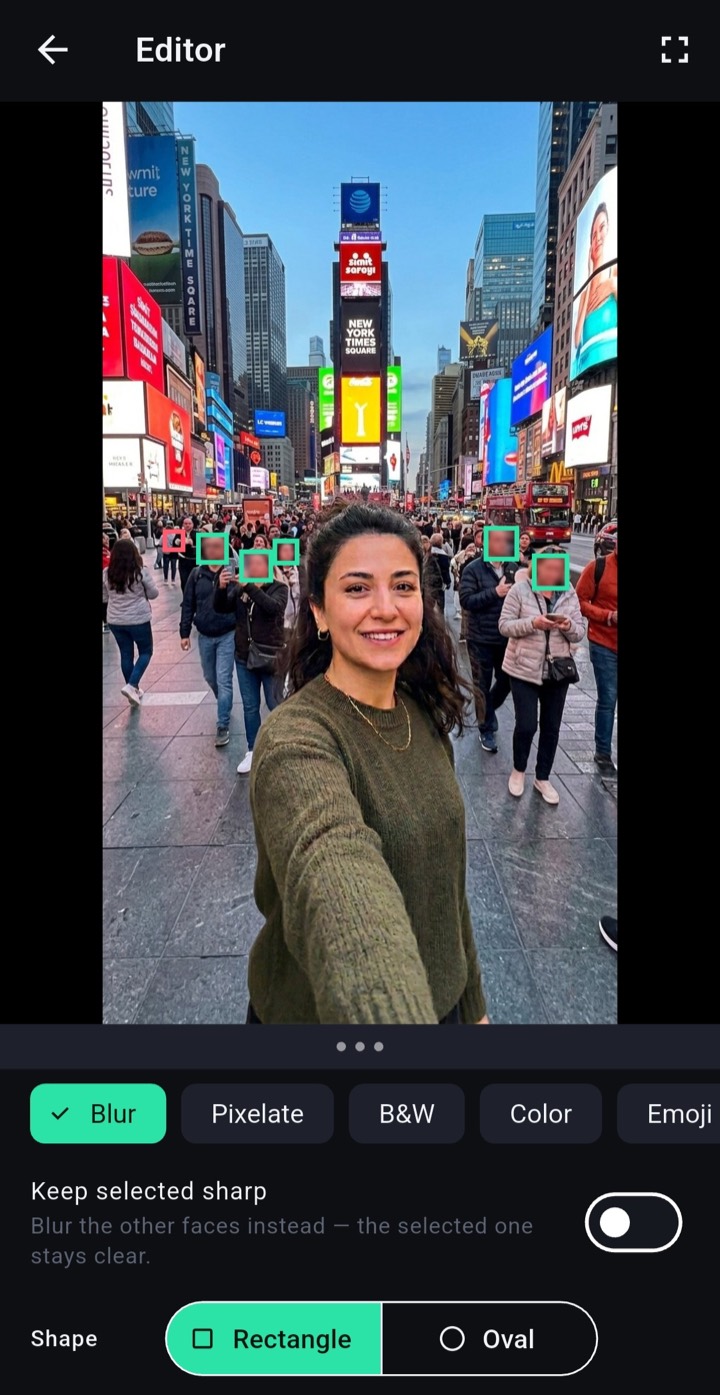
Select and style
Plates appear next to any faces that were found. Select them, pick Blur, Pixelate or a solid color, and check the preview.
-
Save
Export. Blurize saves new copies and leaves your originals untouched, so you still have the full photos for the paperwork.
Tips for listing photos
- Photograph the car straight on or at three-quarters — plates seen at a steep angle are harder to detect.
- Use a solid color instead of blur if you want the plate area to look deliberate and tidy.
- Small, angled or distant plates can be missed. Check the result and add any missing plate by hand.
- Check the reflections: a plate can show up in a shop window or another car’s paint.
Questions
Is plate detection on by default?
No. It is an option you switch on before scanning. Face detection is always on.
Are my photos uploaded?
No. Everything runs on your phone, and nothing is sent to a server.
Can I do several photos at once?
Yes. Pick several photos together and hide plates and faces in all of them in one go.