 Blurize
How to blur people in the background of a video
Cafés, streets, airports: the best places to film are full of people who didn’t sign up to be in your video. Here is the quickest way to keep yourself sharp and hide everyone else.
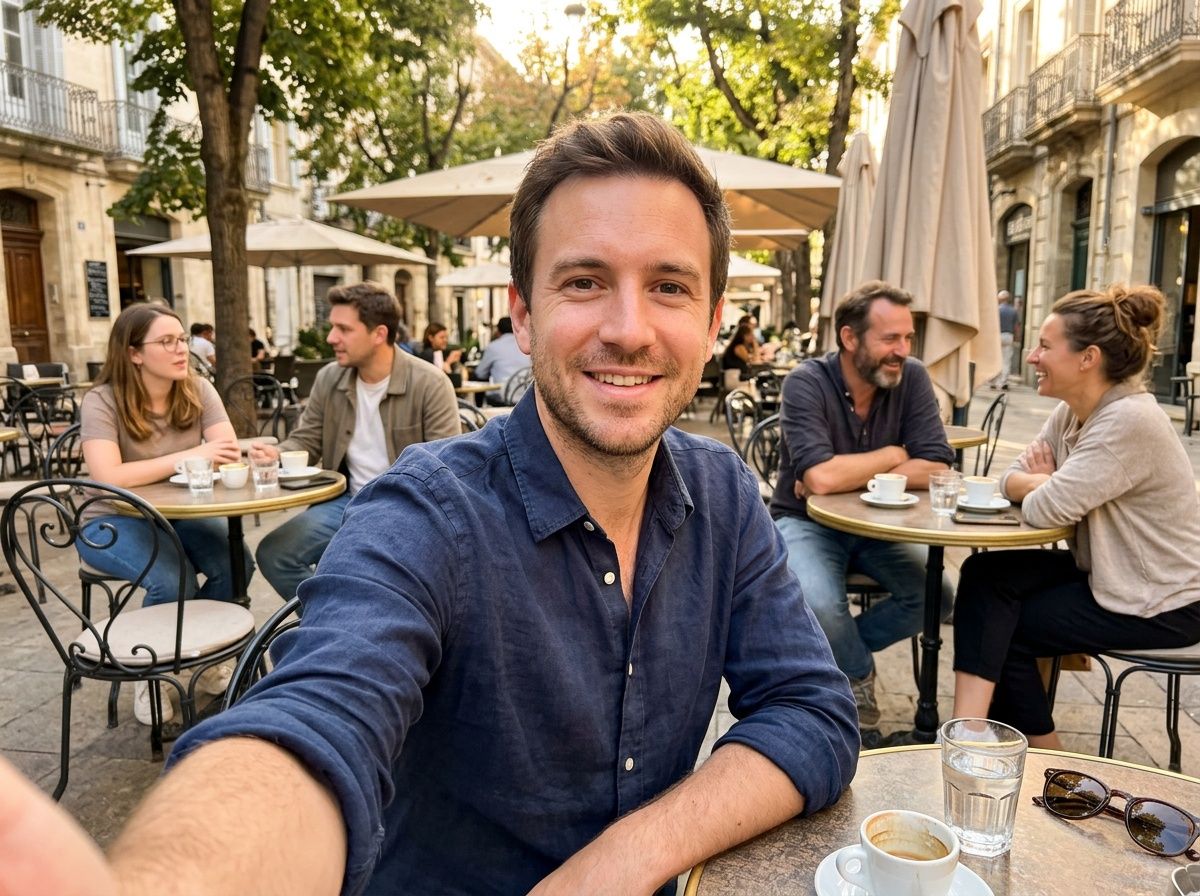 Before
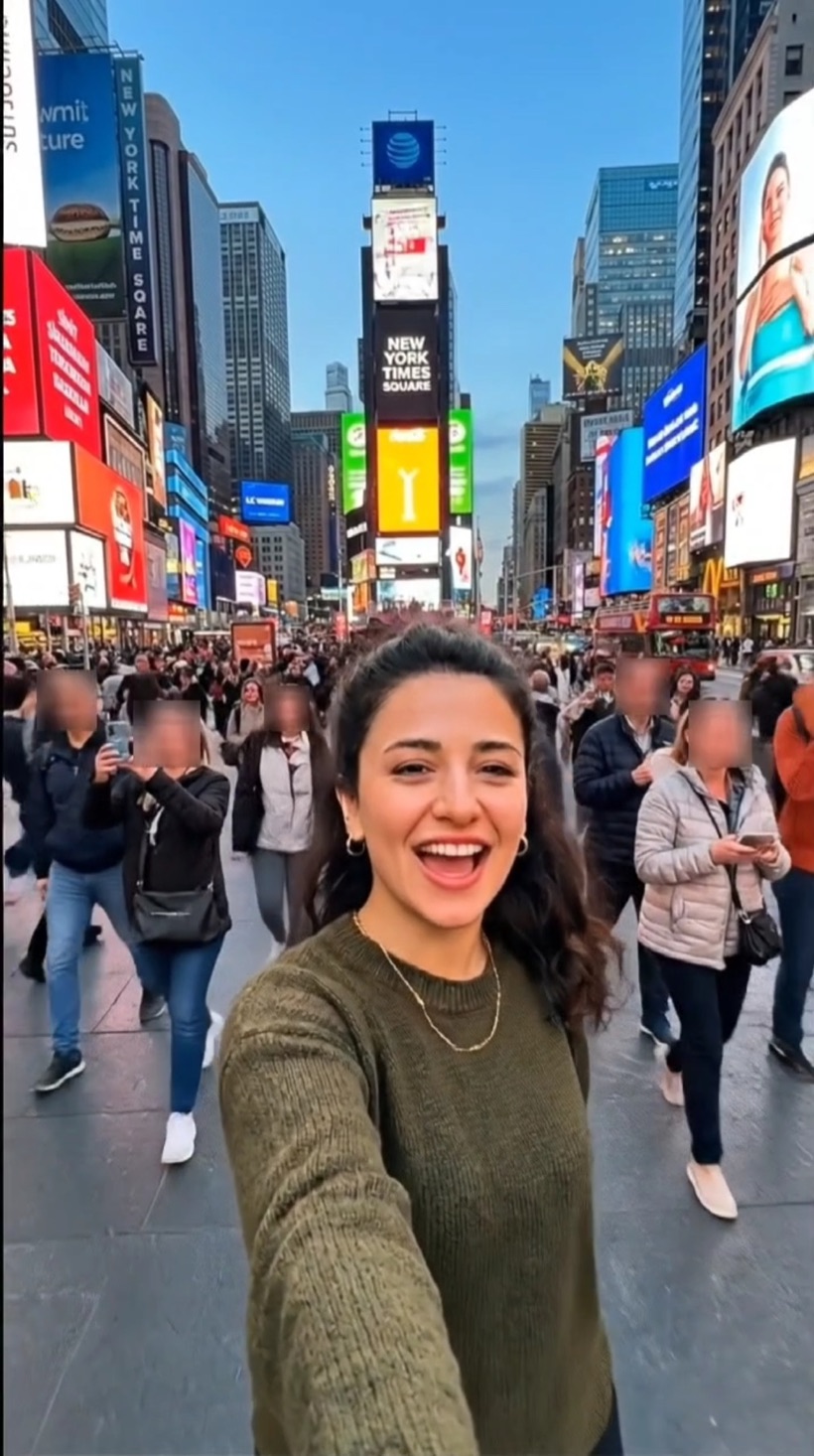
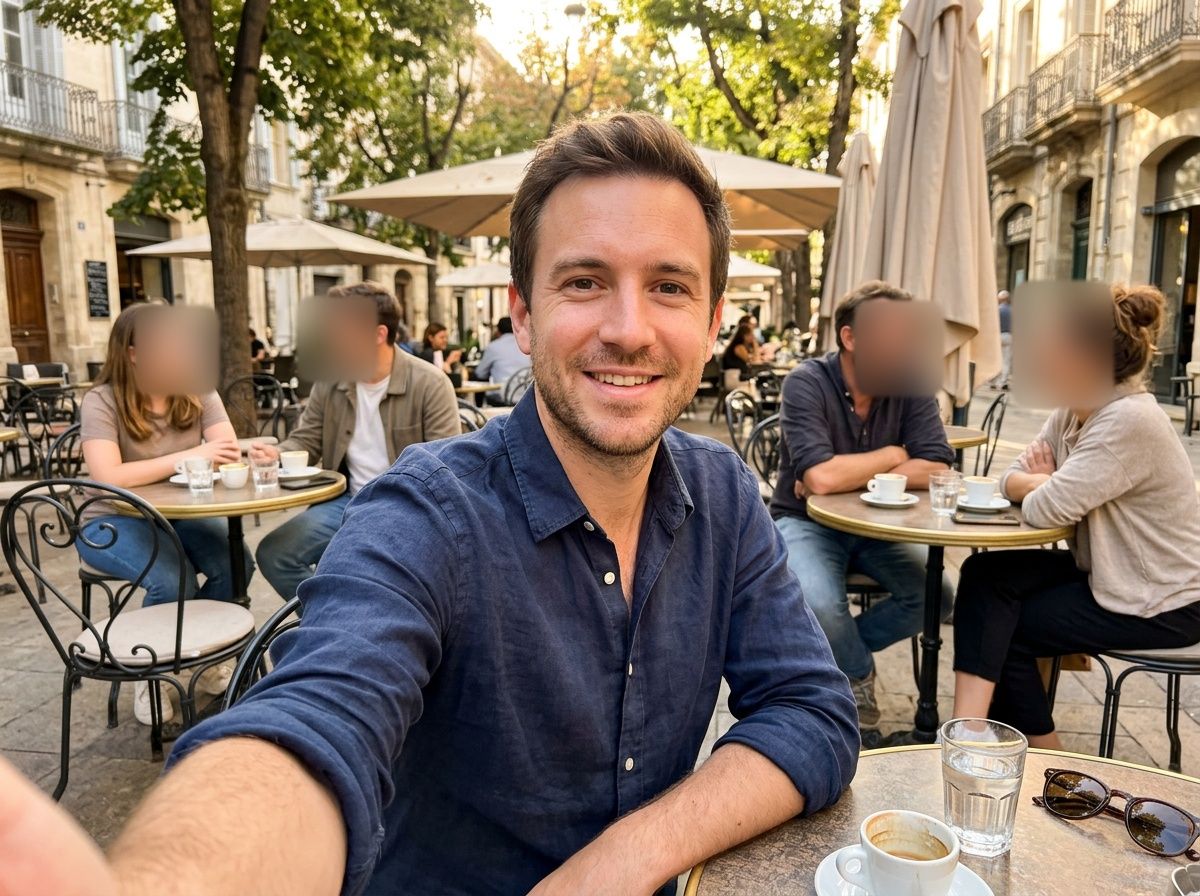 After
The one-tap approach
Tapping every stranger in a busy scene takes forever. It’s quicker to work the other way round: tell the app who should stay visible, and hide the rest.
In Blurize this is Keep selected sharp. Select yourself (and anyone filming with you), switch it on, and every other face in the video is hidden.
How to do it in Blurize
-
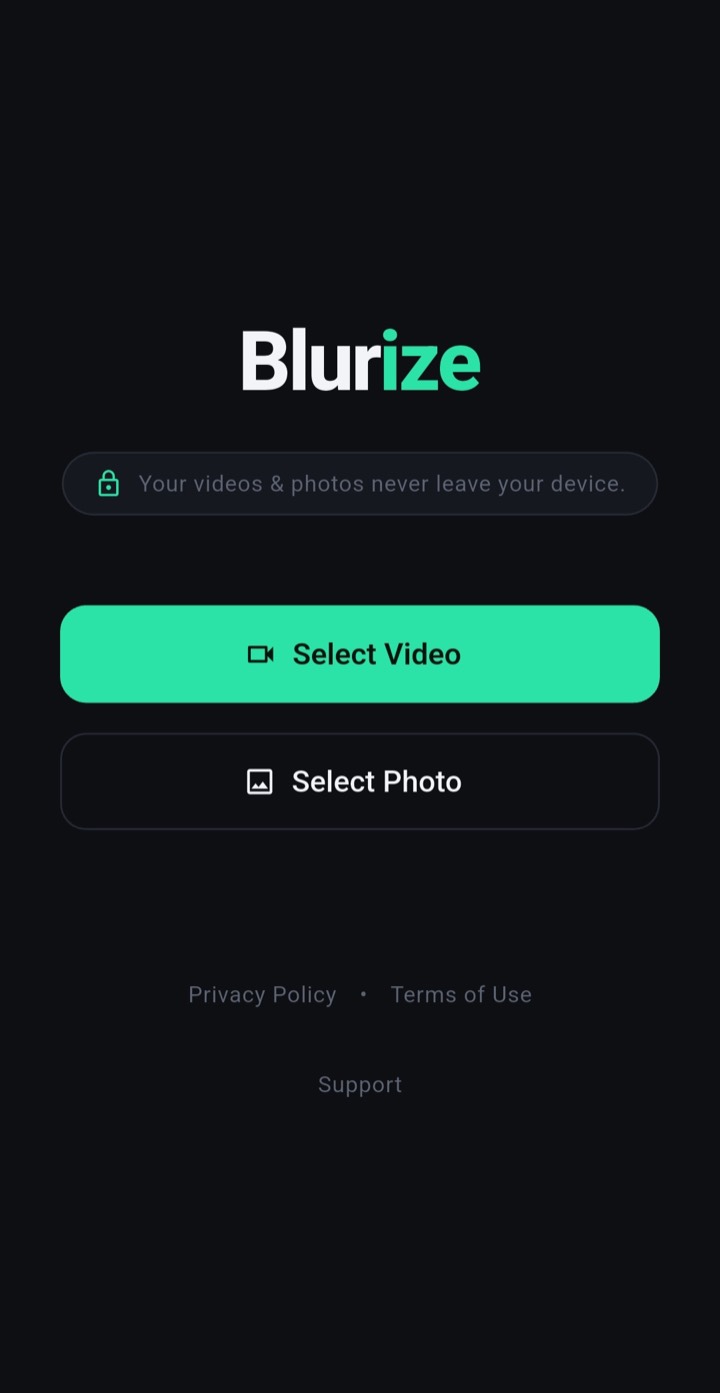
Pick your clip
Open Blurize and tap Select Video.
-
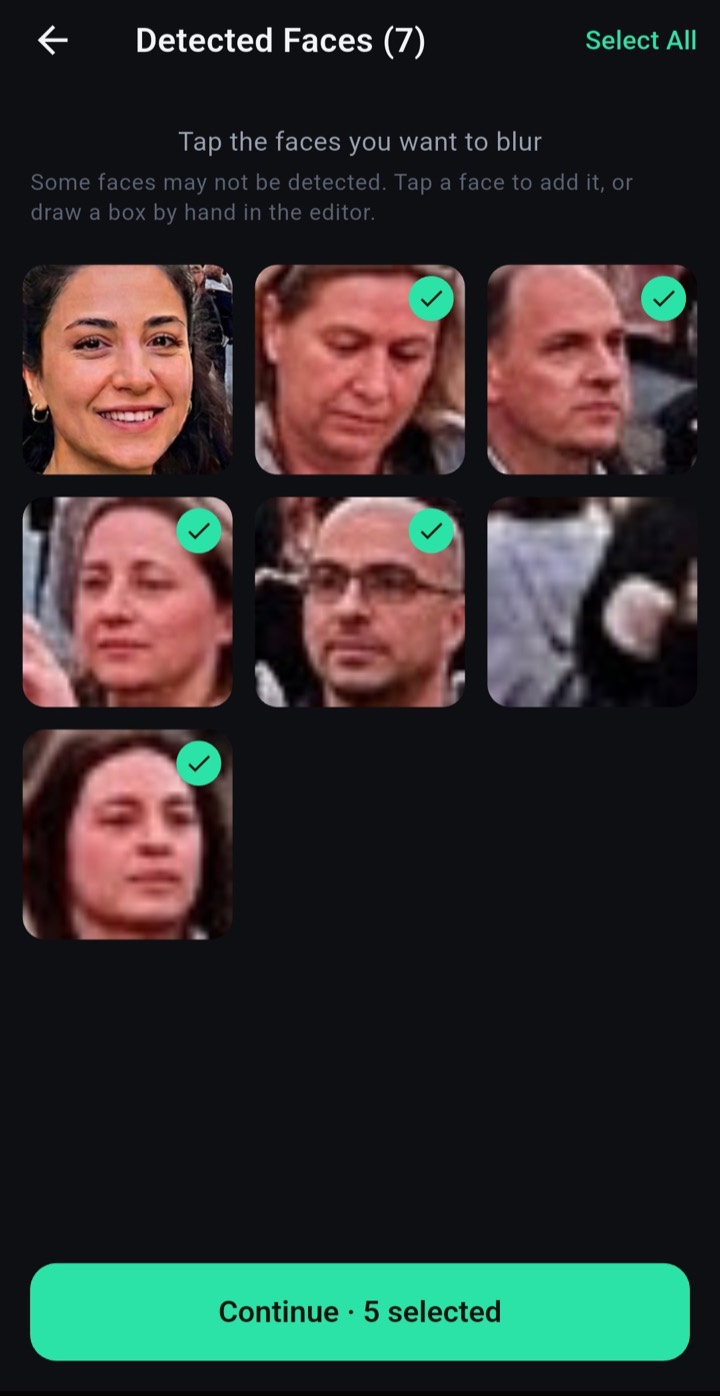
Find the faces
Tap Detect Faces and wait for the thumbnails.
-
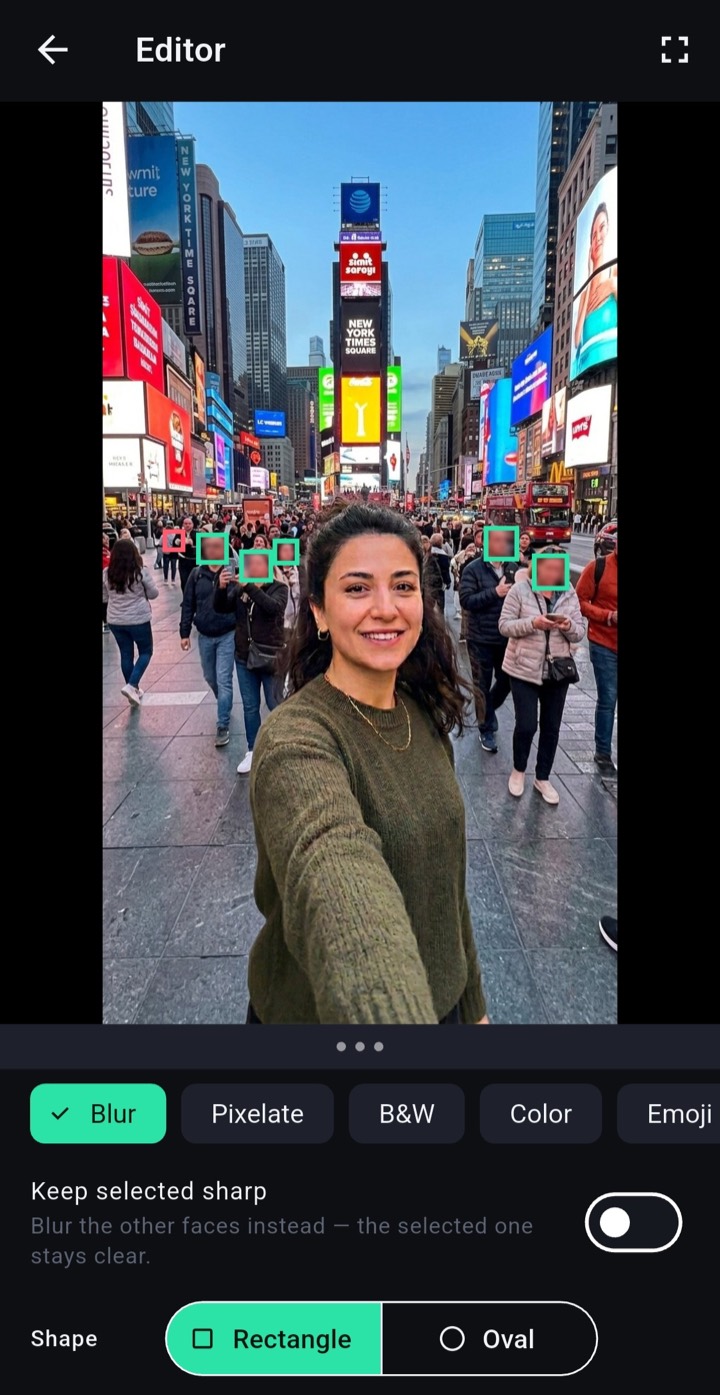
Select yourself, hide the rest
Tap your own face, turn on Keep selected sharp, and pick a style.
-
Export
Check the preview and export. Sound is kept, and the original clip is untouched.
Is it a legal requirement?
Rules on filming people in public differ from country to country, and this is not legal advice. Blurring bystanders is simply the safe, considerate default when you don’t know whether they’d mind.
Questions
Will it blur me by mistake?
Only the faces you choose to hide are hidden. With Keep selected sharp, the people you select stay clear.
Does it work for photos too?
Yes, the same steps work for one photo or several at once.
Is anything uploaded?
No. Blurize works offline and never sends your media anywhere.